Most of these will assume that you’ve been through a barebones tutorial of HaxeFlixel, probably the one on the HaxeFlixel website, but certain ones will be applicable for general programming knowledge.
Since this is on the frontpage I’ll also use this as a little index
- Command Line Guide (ur already reading it lmao)
- Working with Flash art/animation
- HTML5 export tips
QUICK COMMAND LINE GUIDE
Here’s something that not too many give thought into for novice programmers. The command line can be a bit daunting for people who just want to dip their toes into frameworks like HaxeFlixel. Here’s basically most of what you need for basic HaxeFlixel navigation, installation, and general use. It’s not as scary as you think.
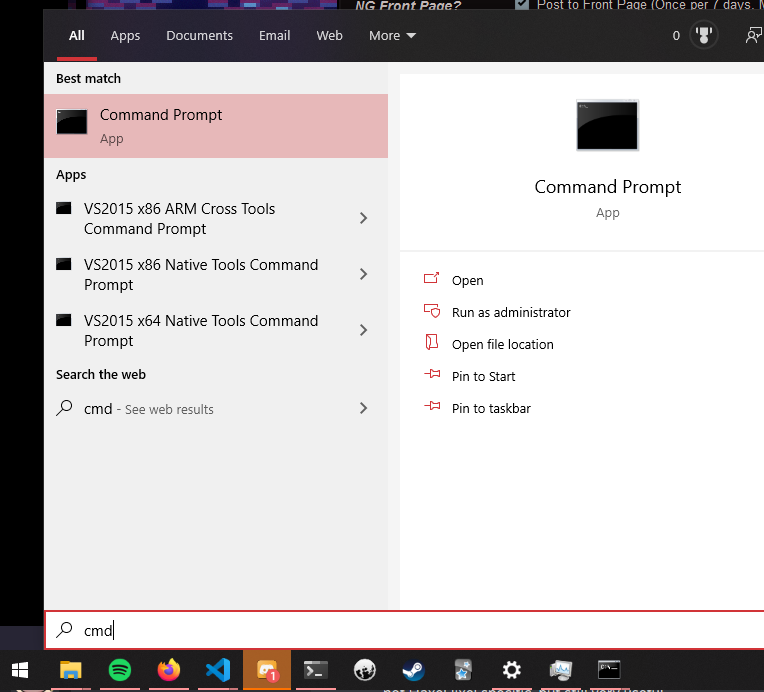
First off, to open the command line on WINDOWS, type ‘cmd’ into either Windows search, or press Win + R, then type in ‘cmd’.
THE CD COMMAND
cd <directory>
‘cd’ stands for ‘change directory’. At least that’s what it does. Allows you to change directories. Say you’re in your user folder on your computer
c:\Users\user>
It might look something like that. Let’s hop into our Documents folder
c:\Users\ninjamuffin99>cd Documents
c:\Users\ninjamuffin99\Documents>
Easy as that, you just moved into your Documents folder.
Maybe you want to create your HaxeFlixel projects in a specific folder within your documents, one called ‘HaxeFlixel-Projects’. Easy. type in ‘cd HaxeFlixel-Projects’ (NOTE: for the sake of tutorial, create this folder in Windows File Explorer as you would normally create a folder, and THEN follow this step)
c:\Users\ninjamuffin99\Documents>cd HaxeFlixel-Projects
c:\Users\ninjamuffin99\Documents\HaxeFlixel-Projects>
Woah look at that you’re in… but how do you get out? Two periods, ‘..’, refers to the relative parent directory when it comes to all this fancy command line stuff. Right now we’re in ‘HaxeFlixel-Projects’, so ‘..’ refers to ‘Documents’. If you use ‘cd ..’ you will move to ‘Documents’
Wanna use it again?
c:\Users\ninjamuffin99\Documents>cd ..
c:\Users\ninjamuffin99>
Just like that you’re in your main Windows user directory. While this example uses Windows, the ‘cd’ command is pretty much universal across Windows, Mac, and Linux. Let’s go back to our projects folder. However this time let’s try out a quick little feature of most command lines, tab auto-complete. A few letters into typing the ‘Documents’ part of ‘cd Documents’, press the TAB key on your keyboard. It should autocomplete! It saves a bit of time, and I guess prevents potential typos. Try it with ‘HaxeFlixel-Projects’ as well, since that’s a handful to type out so often.
c:\Users\ninjamuffin99>cd Documents
c:\Users\ninjamuffin99\Documents>cd HaxeFlixel-Projects
c:\Users\ninjamuffin99\Documents\HaxeFlixel-Projects>
There we go!
DIR / LS
dir (Windows) ls (Mac and Linux)
These commands work in pretty much the exact same way. They show you the current directory.
C:\Users\ninjamuffin99\Documents\HaxeFlixel-Projects>dir
Volume in drive C has no label.
Volume Serial Number is 7CF9-09E9
Directory of C:\Users\ninjamuffin99\Documents\HaxeFlixel-Projects
03/25/2020  12:04 PM    <DIR>          .
03/25/2020  12:04 PM    <DIR>          ..
03/25/2020  12:04 PM    <DIR>          Cityhoppin2
03/25/2020  12:03 PM    <DIR>          CoolGameHaha
03/25/2020  12:04 PM    <DIR>          Vervian
              0 File(s)              0 bytes
              5 Dir(s)  168,012,500,992 bytes free
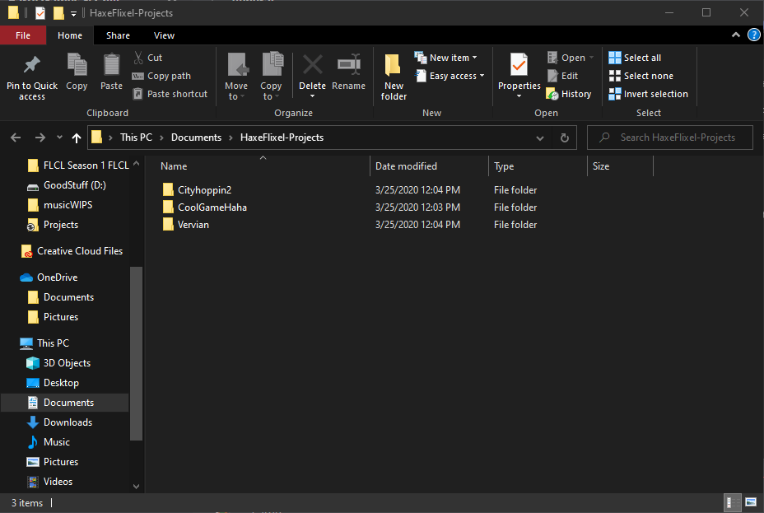
C:\Users\ninjamuffin99\Documents\HaxeFlixel-Projects> Typing in ‘dir’ will output something like this. This is what it looks like in Windows File Explorer
And that’s it! Simple commandline guide!
yes